Organize your IoT fleet in Arduino® Cloud with Smart Folders
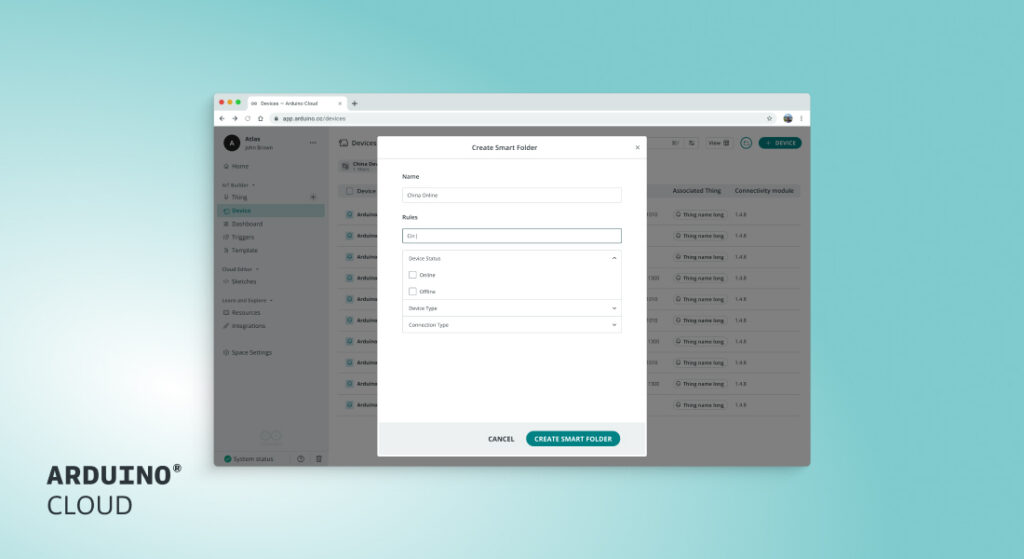
Managing IoT devices at scale is hard, but we believe finding the right resources at the right time shouldn’t feel like searching through a haystack! That’s why we built Smart Folders in Arduino Cloud – saved searches that stay alive and update automatically in real-time. This builds on recent improvements announced in Arduino Cloud, including a dark theme and a new Thing page.
What are Smart Folders?
Smart Folders bring dynamic, rule-based organization to Arduino Cloud, an all-in-one platform to bring your IoT projects to life quickly. If you’ve used Smart Folders in macOS or Google Drive, the concept will feel familiar – but we’ve tailored it specifically for IoT fleet management.
Instead of manually organizing resources into static folders that get outdated immediately, you create folders based on criteria that matter to your workflow: device status, location, connection type, or custom keywords. Arduino Cloud automatically populates these folders and keeps them updated as your fleet evolves.
Where you can create Smart Folders
Smart Folders are available across all major IoT listing pages:
This universal availability means consistent organization across your entire Arduino Cloud workspace.
How to create a Smart Folder
Creating a Smart Folder is straightforward: here’s a quick step-by-step guide.
1. Define your criteria
Use search and filter controls to narrow down your resources. You can combine multiple filter types:
- Keywords: Multiple search strings as individual criteria (press Enter after each)
- Status filters: Device status
- Technical filters: Device type, connection type, timezone
- Metadata filters: Creation date, tags, and attributes
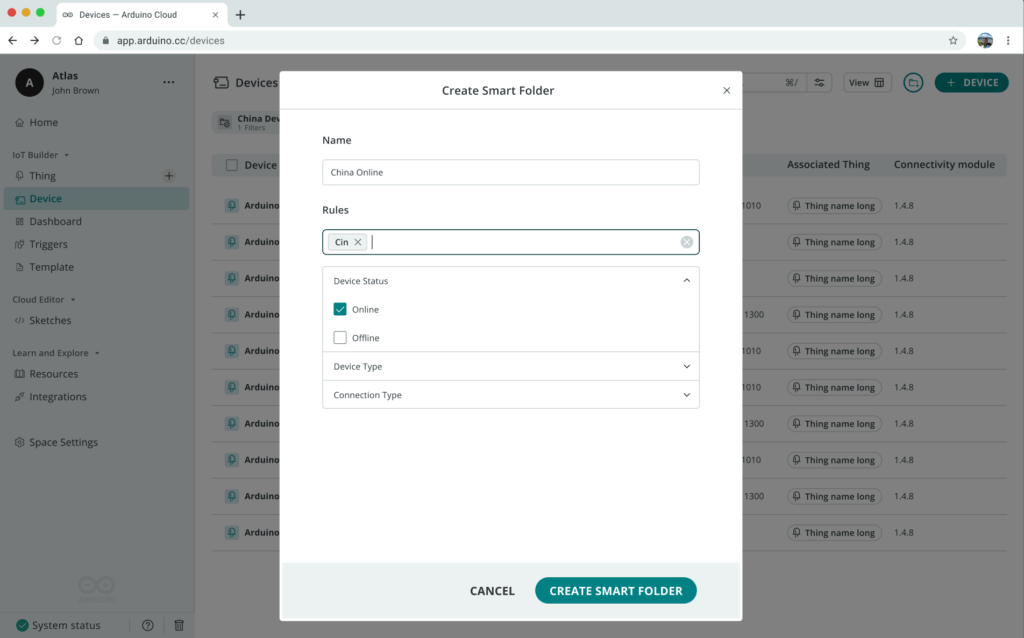
Select multiple active filters such as keywords, status, device or connection type
2. Save as a Smart Folder
Save your filters with a descriptive name. Arduino Cloud immediately creates a folder that automatically includes all matching resources.
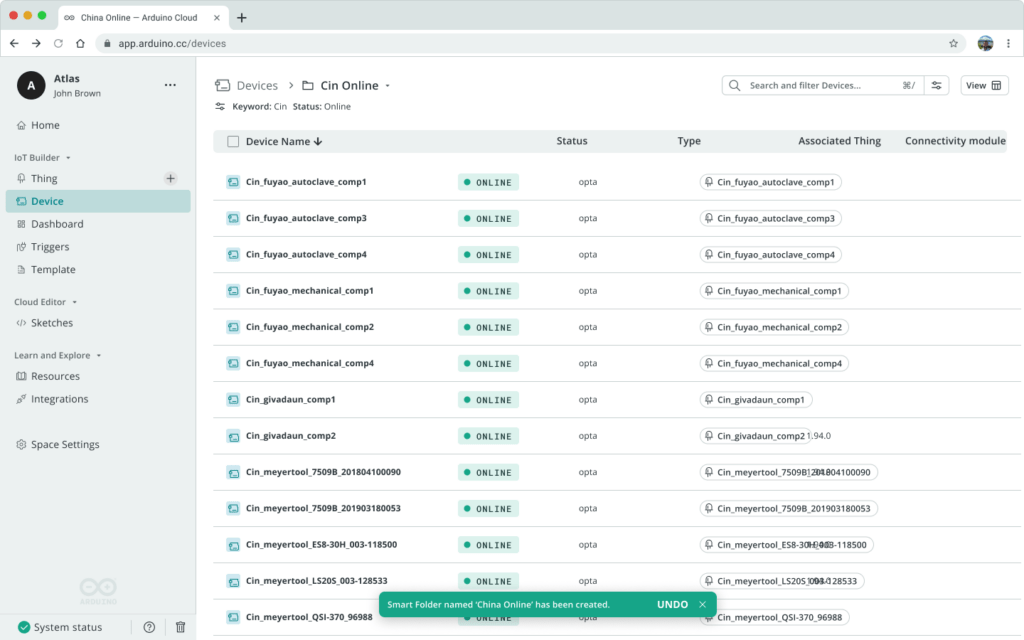
Arduino Cloud instantly generates a folder containing all matching resources
3. Manage and refine
Here are the key actions you can take to keep your Smart Folders always functional.
- Duplicate: Create variations quickly
- Edit filters: Adjust criteria when requirements change
- Delete: Remove unused folders
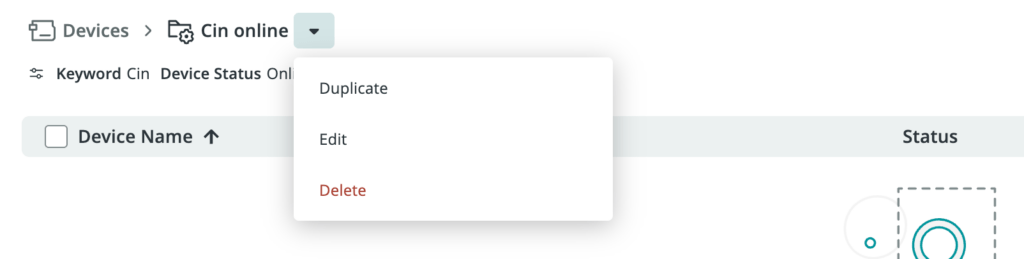
The Smart Folder management options menu
Why Smart Folders matter in Arduino Cloud
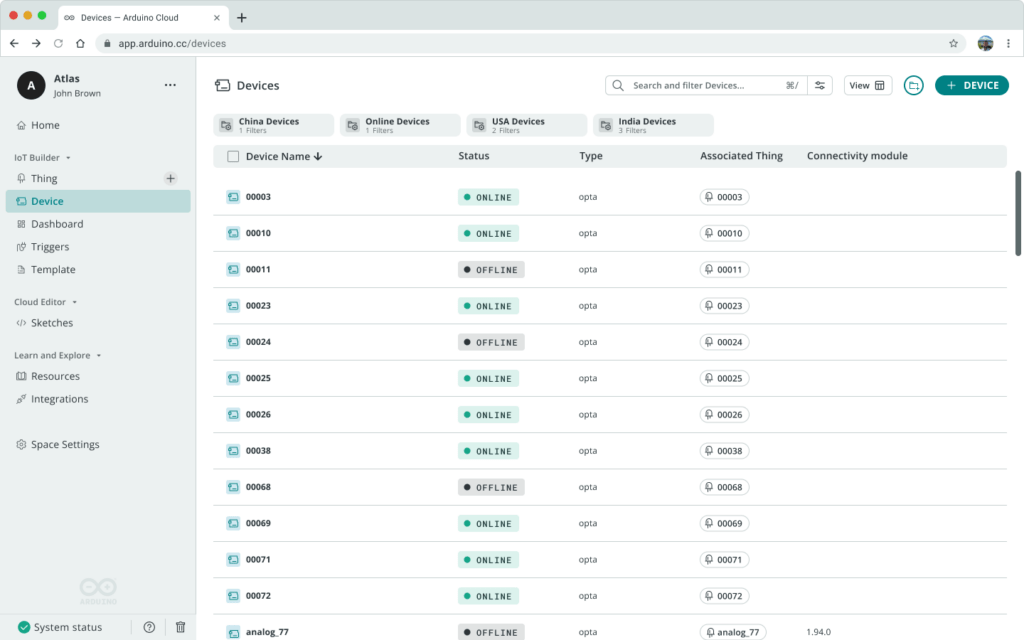
Your Smart Folders appear at the top
Traditional folders become stale immediately and require constant manual maintenance. Smart Folders stay current automatically. Add a new device matching existing criteria? It appears in the right folders instantly. Change a device’s status? It moves between folders automatically. Update tags? Your organization adapts in real time.
Watch Marta Barbero, our Lead Product Manager, explain what you can do with Smart Folders in Arduino Cloud.
Getting started
Smart Folders are available now. Here’s how to start:
1. Log in to Arduino Cloud.
2. Navigate into your IoT builder side bar: Things, Devices, Dashboards, or Triggers.
3. Select the Smart Folder folder icon.
4. Apply filters using search and filter controls.
5. Save as Smart Folder with a descriptive name.
6. Pin important folders to your sidebar for quick access.
Start simple with one or two folders for your most common searches, such as “My Active Projects” or “Offline Devices,” and see how instant filtered views change your workflow!
Try Smart Folders today in Arduino Cloud, as well as our AI Assistant. Share your feedback in the Arduino community forums or reach out to our support team.
Arduino is a trademark or registered trademark of Arduino S.r.l.